 AnuLaya
Playlists & Lessons
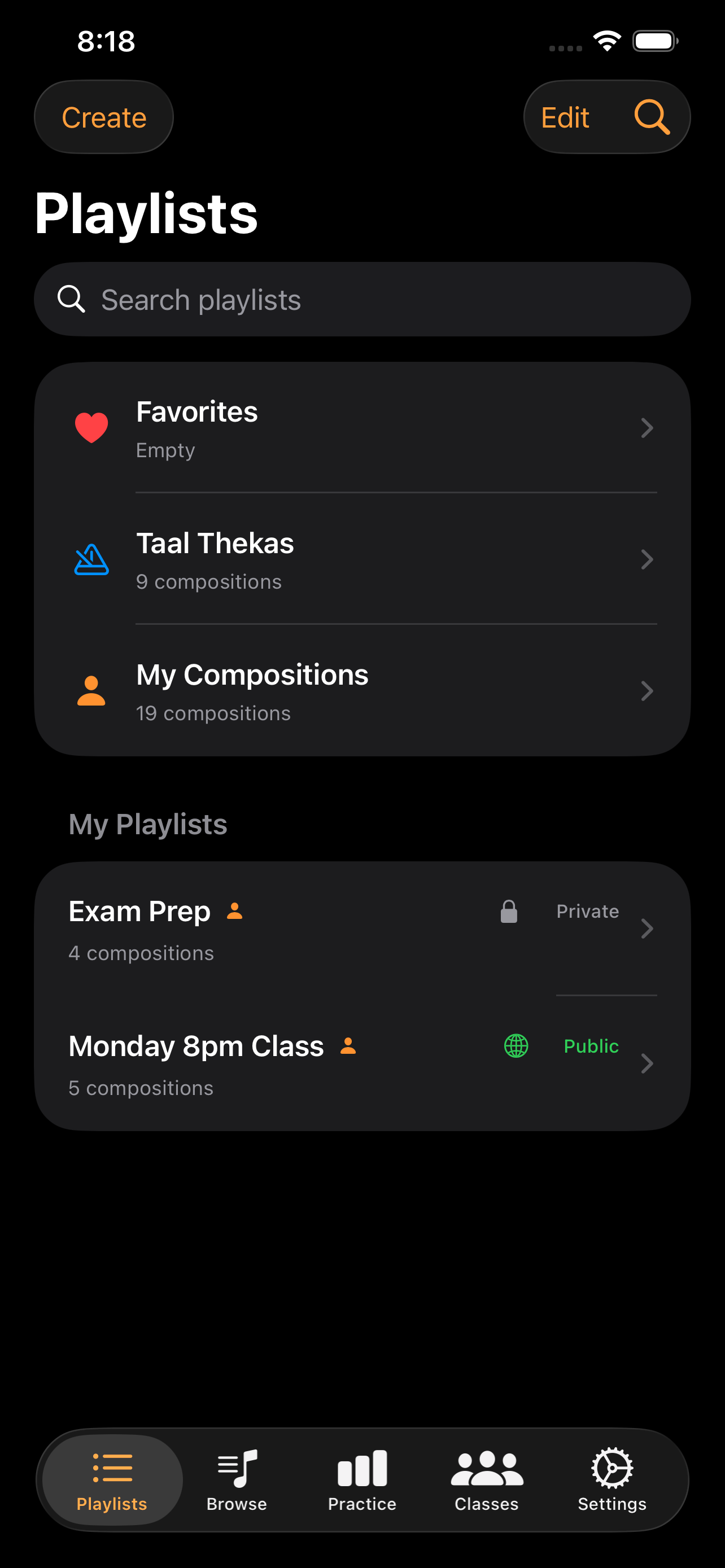
Playlists are the primary unit of teaching on AnuLaya. A playlist is an ordered set of compositions with a per-entry tempo, speed multiplier, and notes — exactly the controls a teacher uses to sequence a lesson. Throughout the help you will see them called both playlists (in the app's UI) and lessons (when they are used as a curriculum).
Playlists let you organise compositions into collections for structured practice or teaching.
Creating and managing playlists
- Create a playlist with Create in the Playlists tab.
- Add compositions from the Browse tab — tap the playlist icon on a composition row.
- Reorder compositions within a playlist by dragging.
- Rename or delete playlists from the playlist detail view.
Playlist sections
The Playlists tab groups your collections into:
- Default playlists — built-in shortcuts: Favorites, Taal Thekas, My Compositions.
- My Playlists — playlists you created.
- Class Playlists — playlists shared by classes you belong to.
- Following — playlists from other users that you follow.
Each owned playlist row shows whether it is Private or Public.
Per-composition practice settings
Open any playlist to see its compositions. Each row shows the taal, category, and the practice tempo for that composition in this playlist. Tap the row's ••• menu for:
- Listen — open Listen mode at the playlist's tempo.
- Record — open Record mode at the playlist's tempo.
- Edit Practice Tempo — change tempo, speed multiplier, and per-composition notes (owner only).
Speed multipliers are: Default, 1× (theka), 2× (dugun), 3× (tigun), 4× (chaugun). When the playlist tempo differs from the composition's original, the row reads Playlist tempo overrides original X BPM.
Sharing playlists
- Playlists are Private by default — only you can see them.
- Use the visibility action to make a playlist Public, listing it in Discover for all users.
- All compositions in a public playlist must be Published. If any are private, the app will prompt you to publish them first.
- Switch back to Private at any time.
Following playlists
- Browse public playlists from other users in Discover (toolbar icon in the Playlists tab).
- Follow a playlist to add it to your Playlists tab.
- Followed playlists receive live updates — when the owner adds or removes compositions, your copy updates automatically.
For learners, following a teacher's public playlist is the single best way to keep up with their curriculum without joining a private class. New compositions the teacher adds appear in your Playlists tab the next time you open the app.
Playlists as lessons
A few patterns teachers use to build lessons with playlists:
- One playlist per skill arc — Beginner Teentaal, Ajrada Kaida, Solo Repertoire 2026. Sequenced in the order you want students to learn.
- Per-composition tempos as difficulty markers — set the practice tempo to where you actually want the student working today. Bump it up over time.
- Speed multipliers for laykari work — the same composition listed at 1× and 2× drills the same material at theka and dugun without needing two compositions.
- Notes for context — "Focus on left-hand resonance, not speed" shows up under each row.
A public lesson playlist is the strongest discovery surface a teacher has on AnuLaya — it is what lets a learner find them without a personal introduction. See Teachers for the broader teacher-side view.