 AnuLaya
Browse Compositions
Start with Playlists
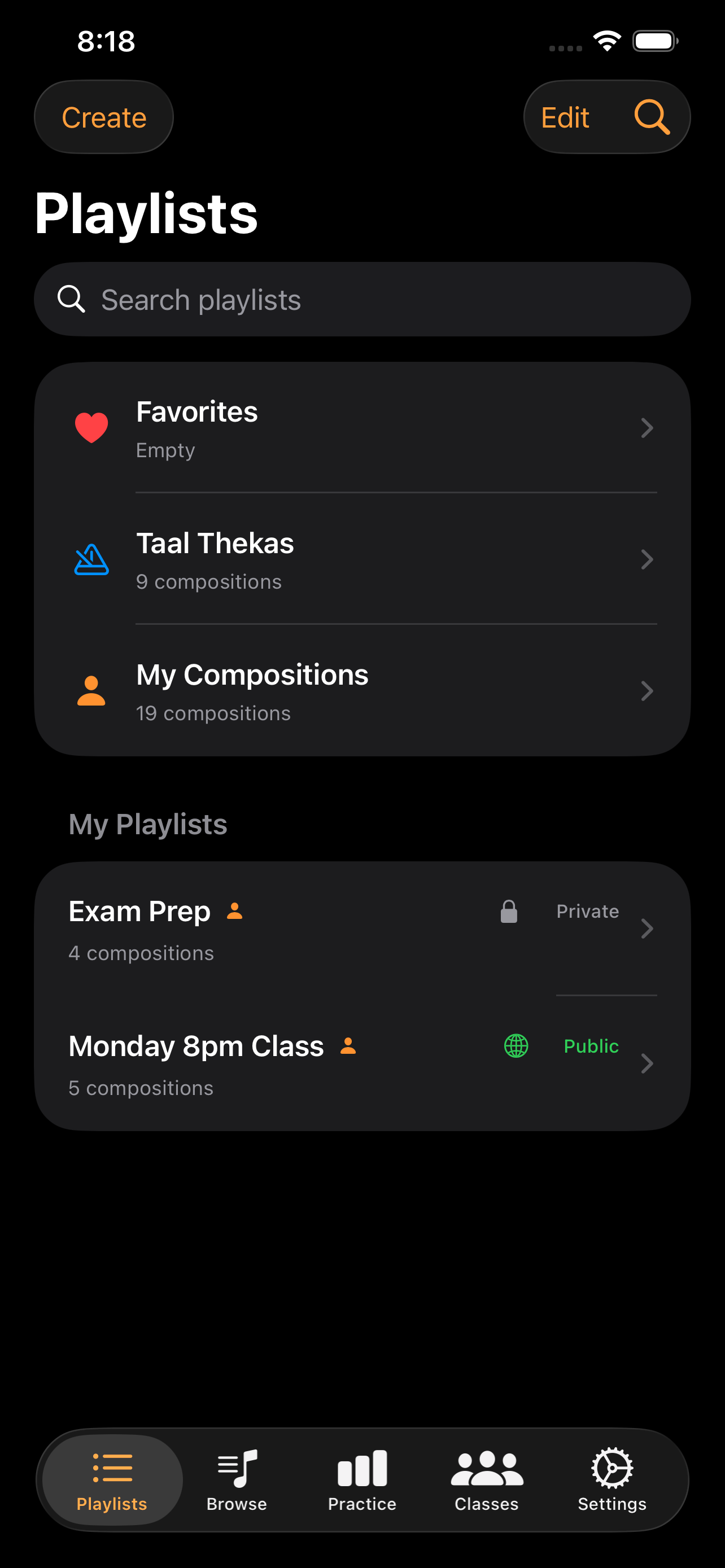
For most users, the best starting point is the Playlists tab — the first icon in the app. Your teacher or fellow musicians can share playlists with you, giving you a curated set of compositions to practice repeatedly. Follow a shared playlist and it stays updated as the owner adds or changes compositions.
Once you have a playlist, tap any composition in it to open the detail screen and start practicing. This is the daily workflow for most students.
Discovering more compositions
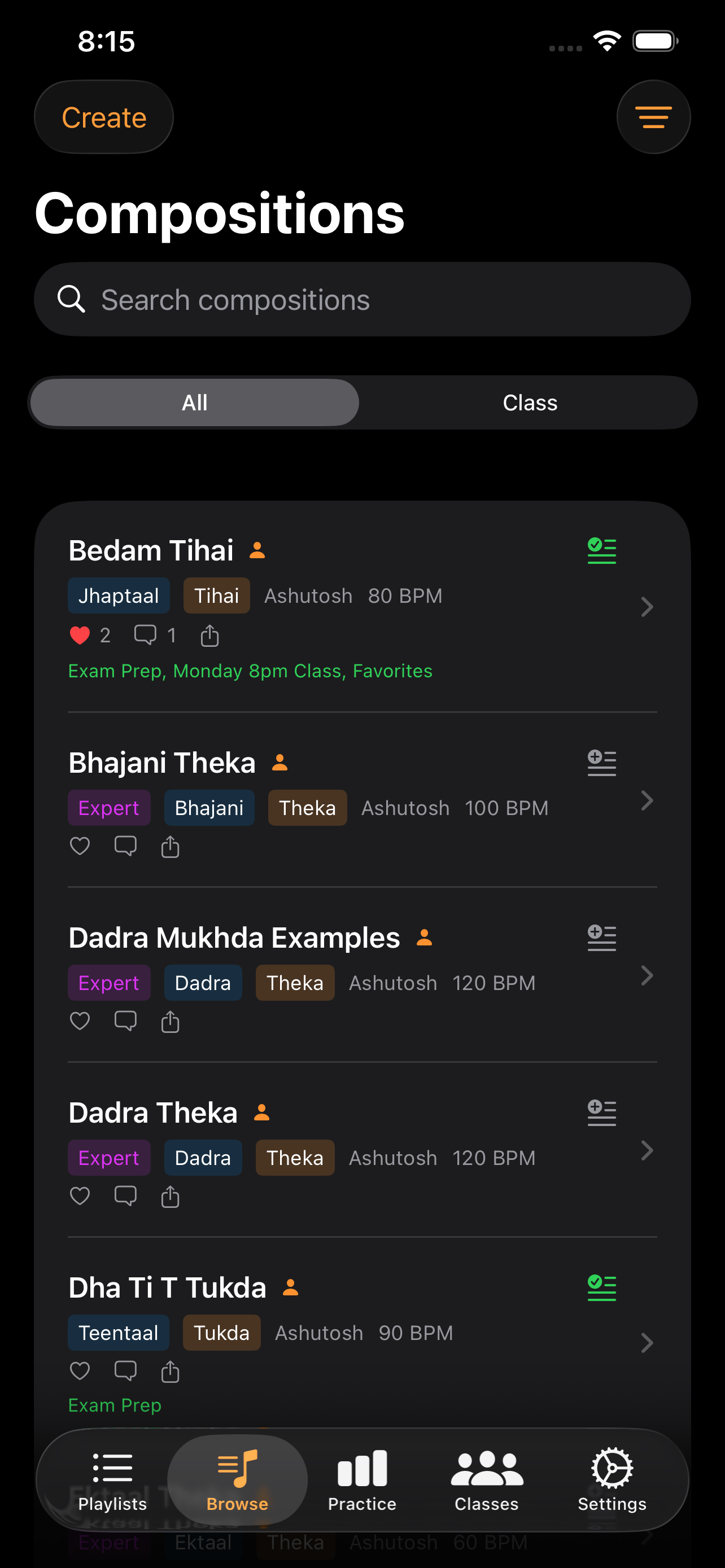
The Browse tab (titled Compositions) is for exploring beyond your playlists — finding new compositions to listen to, follow, or add to your own playlists.
- Browse published compositions in a searchable list.
- Filter by taal (Teentaal, Rupak, Dadra, etc.) using the filter menu.
- Filter by category (kaida, rela, tukda, tihai, theka, song).
- Toggle My Compositions to show only your own work.
- Toggle Expert Only for advanced material.
If you belong to a class, an All / Class segmented picker appears above the list. Class scopes the list to compositions teachers have posted to your classes.
Finding teachers through their work
Browse is also how learners find teachers whose style they connect with. There is no "teacher profile" page; instead, teachers make themselves discoverable through the work they publish.
- Tap a composition to see its author. Each composition has a name attached.
- If you like a composition, look at the same author's other published work — the simplest filter is to remember the name and search for it.
- Compositions with an artist reference recording (a small badge on the row) carry the teacher's audio signature. Listen mode plays their take, not synthesized samples.
- Public playlists in the Playlists tab are the strongest signal of a teacher's curriculum. Follow a playlist whose pacing you like and the teacher's additions show up automatically.
When you find a teacher whose work you want to study with, ask them directly for a class invite code — most teachers list contact info in their bio or on the playlists they publish.
Working with compositions
- Tap a composition to open the detail screen.
- Tap the playlist icon on a row to add the composition to a playlist.
- Swipe right on your own compositions to Publish or Unpublish.
- Swipe left on your own compositions to Delete them.
Offline access
Compositions you open are automatically cached for offline playback. You can manage the cache from Settings → Storage — clear all cached data when you need to free up space.